Day 16 Task: Docker for DevOps Engineers.
What is Docker?
It is a software development platform.
Here you package the app in the image.
The container uses the image to start the application.
Container run on any operating system.
It works the same independently of os, machine, and environment.
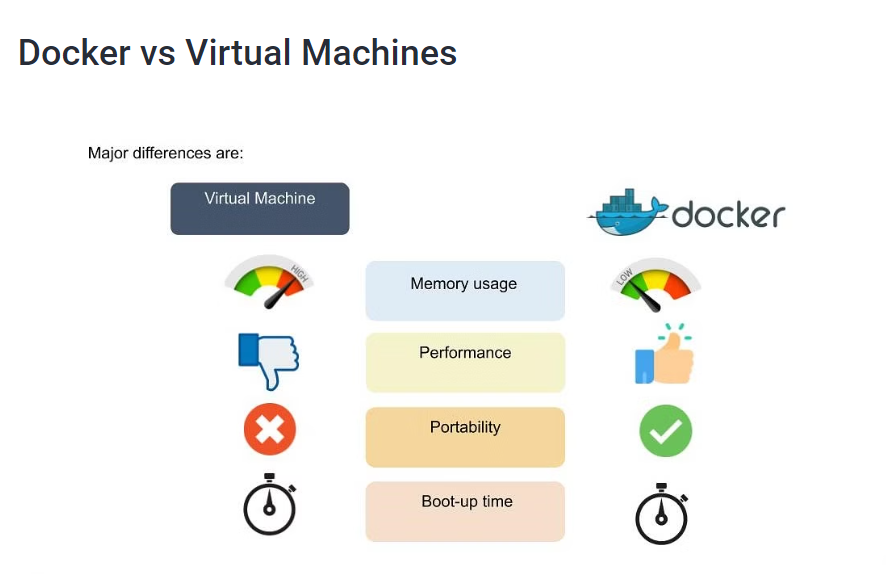
Lightweight compared to VM.
Easier to maintain and deploy.
Docker runs with any language, os, or runtime.
Docker Workflow:-
Docker Components:-
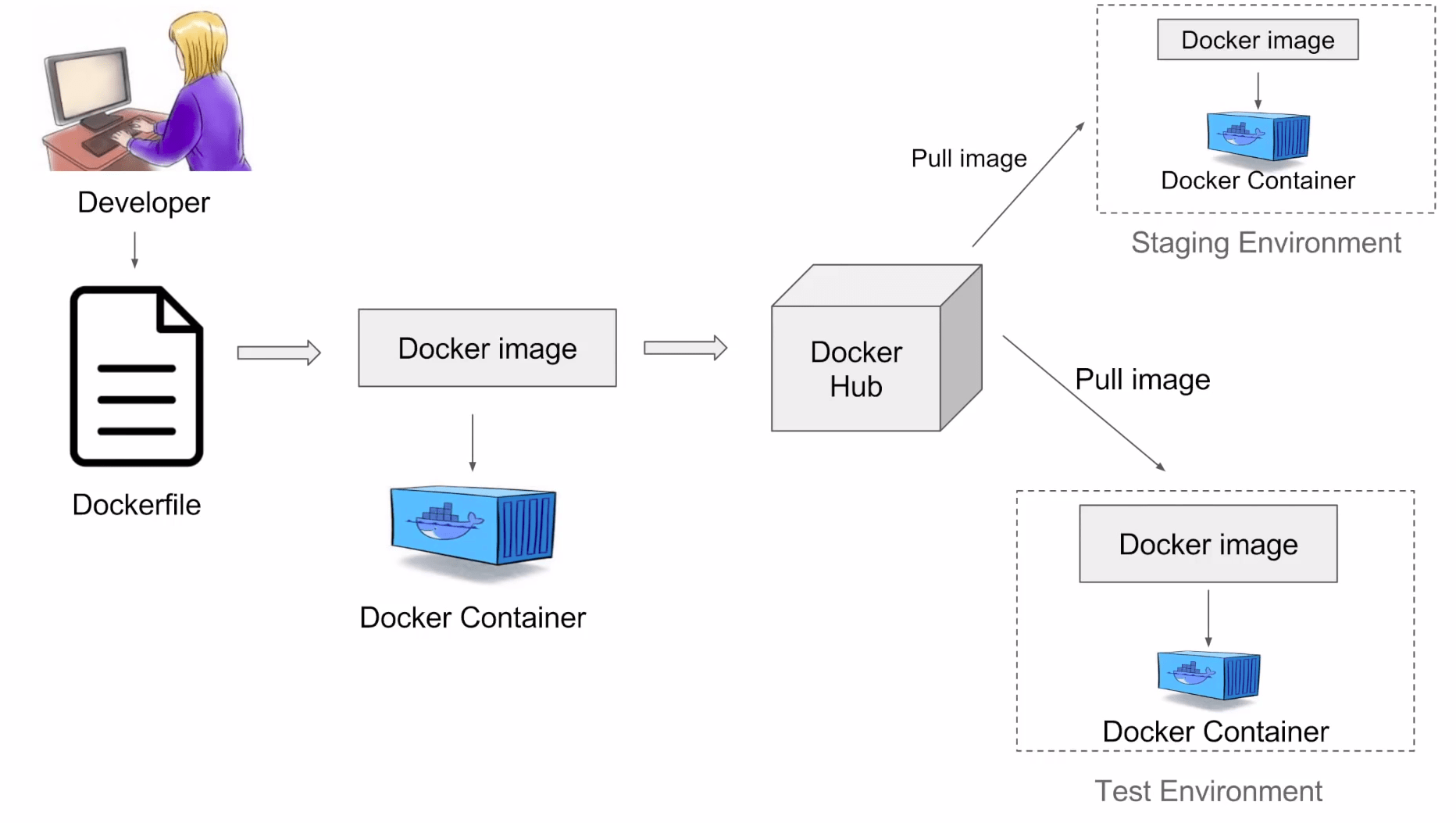
The communication between the Docker client and the Docker host is via a REST API. You can issue similar commands, such as a Docker Pull command, which would send an instruction to the daemon and perform the operation by interacting with other components (image, container, registry).
Docker image:-
A Docker image is a template that contains instructions for the Docker container. That template is written in a language called YAML, which stands for Yet Another Markup Language.
Docker registry:-
The Docker registry is where you would host various types of images and where you would distribute the images from. The repository itself is just a collection of Docker images, which are built on instructions written in YAML and are very easily stored and shared. You can give the Docker images name tags so that it’s easy for people to find and share them within the Docker registry. One way to start managing a registry is to use the publicly accessible Docker hub registry, which is available to anybody. You can also create your registry for your use internally.
Docker container:-
The Docker container is an executable package of applications and their dependencies bundled together; it gives all the instructions for the solution you’re looking to run. It’s lightweight due to the built-in structural redundancy. The container is also inherently portable. Another benefit is that it runs completely in isolation. Even if you are running a container, it’s guaranteed not to be impacted by any host OS securities or unique setups, unlike with a virtual machine or a non-containerized environment. The memory for a Docker environment can be shared across multiple containers, which is useful, especially when you have a virtual machine that has a defined amount of memory for each environment.
Advanced Docker Components:-
Docker compose:-
Docker is designed for running multiple containers as a single service. It does so by running each container in isolation but allowing the containers to interact with one another. As noted earlier, you would write the compose environments using YAML.
Docker swamp:-
is a service for containers that allows IT administrators and developers to create and manage a cluster of swarm nodes within the Docker platform. Each node of the Docker swarm is a Docker daemon, and all Docker daemons interact using the Docker API. A swarm consists of two types of nodes: a manager node and a worker node. A manager node maintains cluster management tasks. Worker nodes receive and execute tasks from the manager node.
Following are steps to install docker in AWS EC2:-
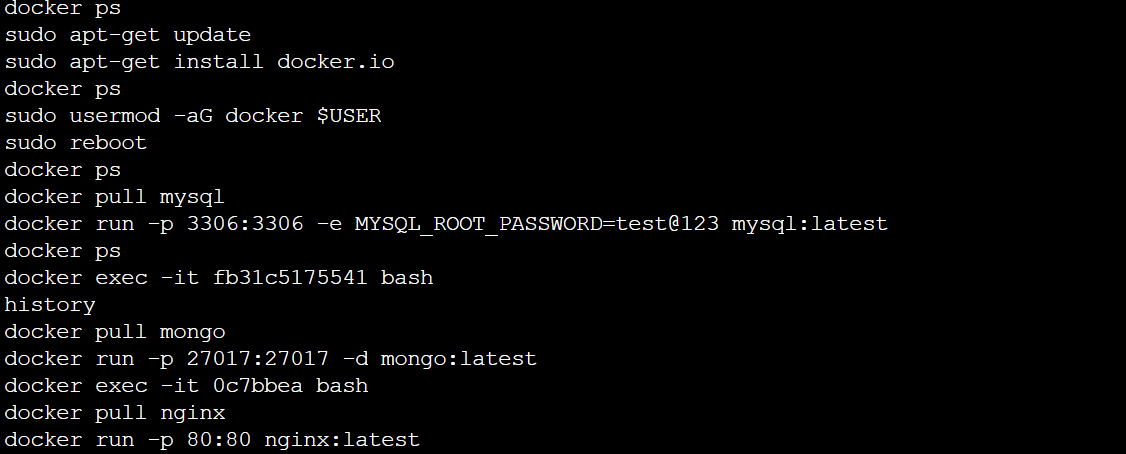
sudo apt-get update
sudo apt-get install docker.io
docker ps
In this command you will get an error of permission so proceed with the next command.sudo usermod -aG docker $USER
sudo reboot
docker ps
The error is gone now and you will get some container names here.docker pull mysql
docker run -p 3306:3306 -e MYSQL_ROOT_PASSWORD=test@123 mysql: latest
For installing MySQL step 7 & 8 is used.docker ps
After this, you will be able to see the name of the MySQL instance.
docker ps:- It is used to list the running container by default.
Task:
- Docker run
The docker run command to start a new container and interact with it through the command line. Check below run command u can rn MySQL container.
eg. docker run -p 3306:3306 -e MYSQL_ROOT_PASSWORD=test@123 mysql: latest
- Docker images
It will display all the available images.

- Docker inspect
The docker inspect command to view detailed information about a container or image.

- Docker Stats
The docker stats command to view resource usage statistics for one or more containers.

- Docker Save
The docker save command to save an image to a tar archive.

- Docker Load
The docker load command to load an image from a tar archive.
Docker top
The Docker top command provides information about the CPU, memory, and swap usage if you run it inside a Docker container:

About the author
AWS DevOps Engineer
Comments
Join the discussionNo comments yet. Be the first to comment.


