Day 19:Docker for DevOps Engineers
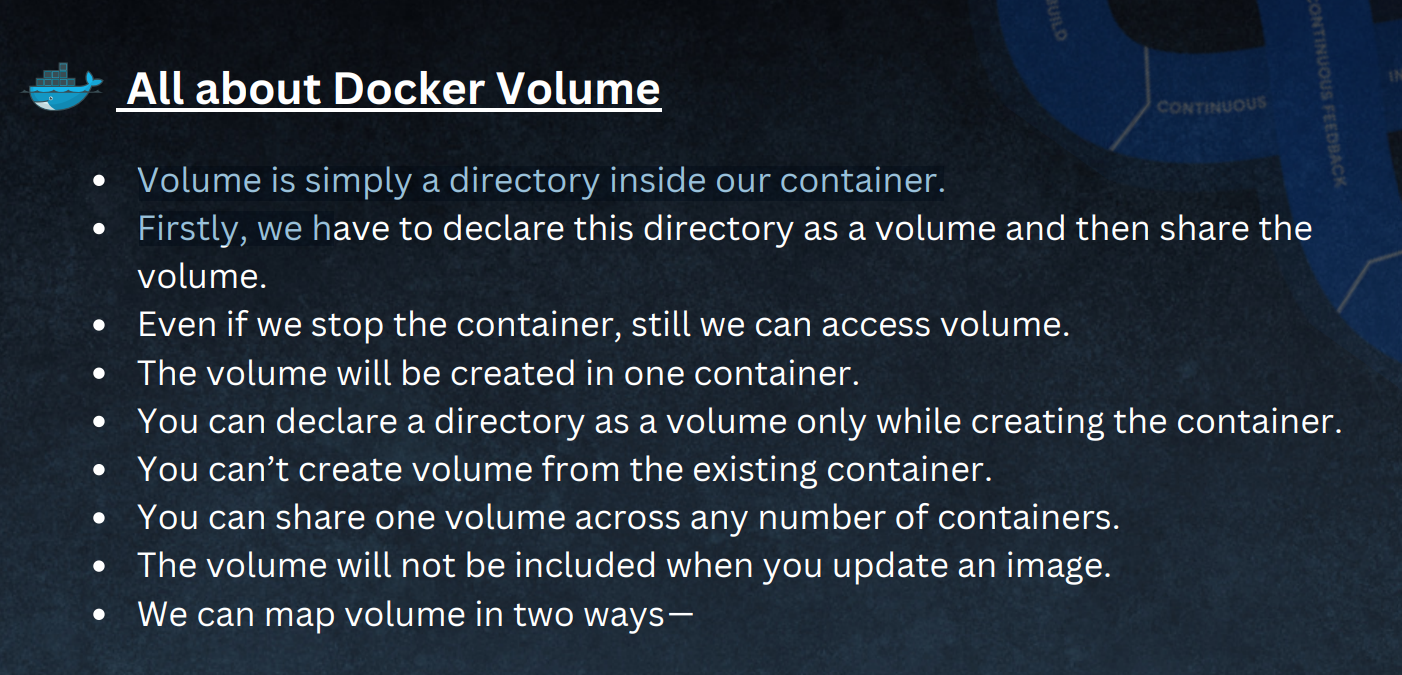
Docker-Volume
Docker Network
Docker Network is a feature that enables different containers to communicate with each other and with other networks. Docker provides several built-in network drivers that allow containers to connect to the host network. You can also create custom network drivers to meet specific network requirements.
some of the most commonly used Docker network drivers:
bridge: The default network driver. If you don’t specify a driver, this is the type of network you are creating. Bridge networks are usually used when your applications run in standalone containers that need to communicate.host: For standalone containers, remove network isolation between the container and the Docker host, and use the host’s networking directly.overlay: Overlay networks connect multiple Docker daemons and enable swarm services to communicate with each other. You can also use overlay networks to facilitate communication between a swarm service and a standalone container, or between two standalone containers on different Docker daemons. This strategy removes the need to do OS-level routing between these containers.macvlan: Macvlan networks allow you to assign a MAC address to a container, making it appear as a physical device on your network. The Docker daemon routes traffic to containers by their MAC addresses. Using themacvlandriver is sometimes the best choice when dealing with legacy applications that expect to be directly connected to the physical network, rather than routed through the Docker host’s network stack.none: For this container, disable all networking. Usually used in conjunction with a custom network driver.noneis available for swarm services.
Task-1
Create a multi-container docker-compose file that will bring UP and bring DOWN containers in a single shot
Write the following content in vi docker-compose.yml
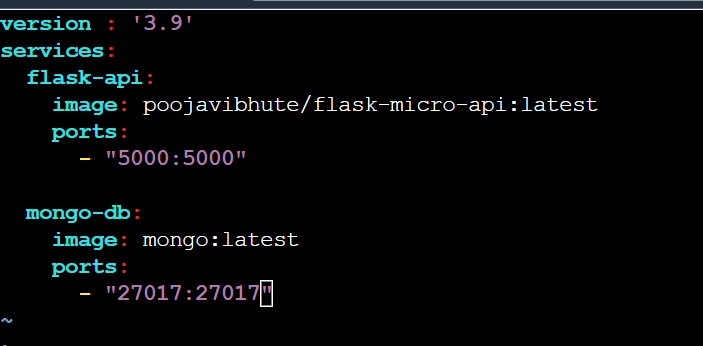
- Use the
docker-compose upcommand with the-dflag to start a multi-container application in detached mode.
docker-compose up -d
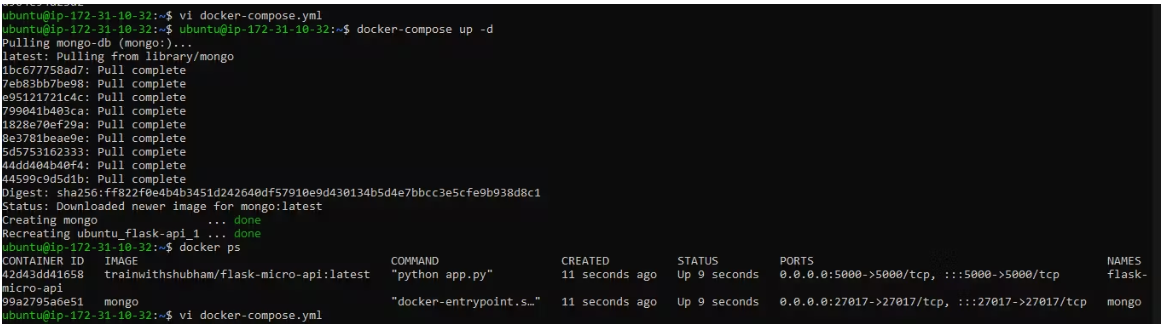
Use the
docker-compose scalecommand to increase or decrease the number of replicas for a specific service. You can also addreplicasin the deployment file for auto-scaling.docker-compose scale flask-api=3The above commands will start the services defined in the YAML file in detached mode and then scale the
flask-apiservice to three instances. Docker Compose will automatically load and balance incoming requests between the running instances.Use the
docker-compose pscommand to view the status of all containers, anddocker-compose logsto view the logs of a specific service.
docker ps
  docker-compose logs
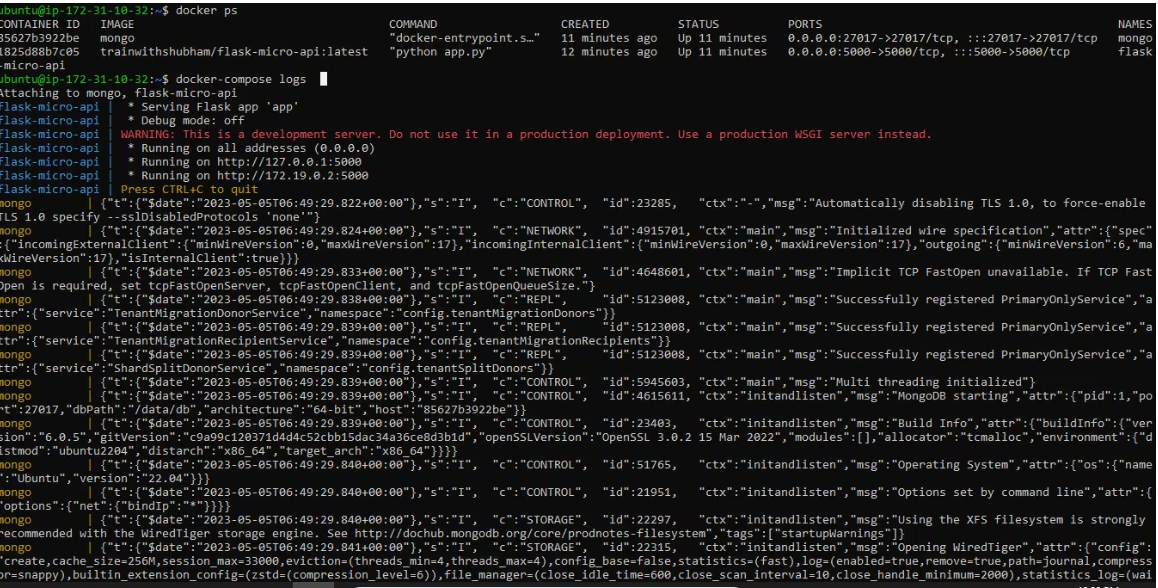
Use the docker-compose down command to stop and remove all containers, networks, and volumes associated with the application
docker-compose down
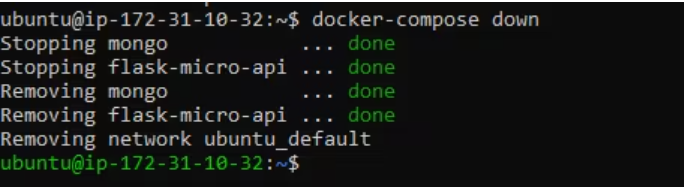
Task-2
Learn how to use Docker Volumes and Named Volumes to share files and directories between multiple containers.
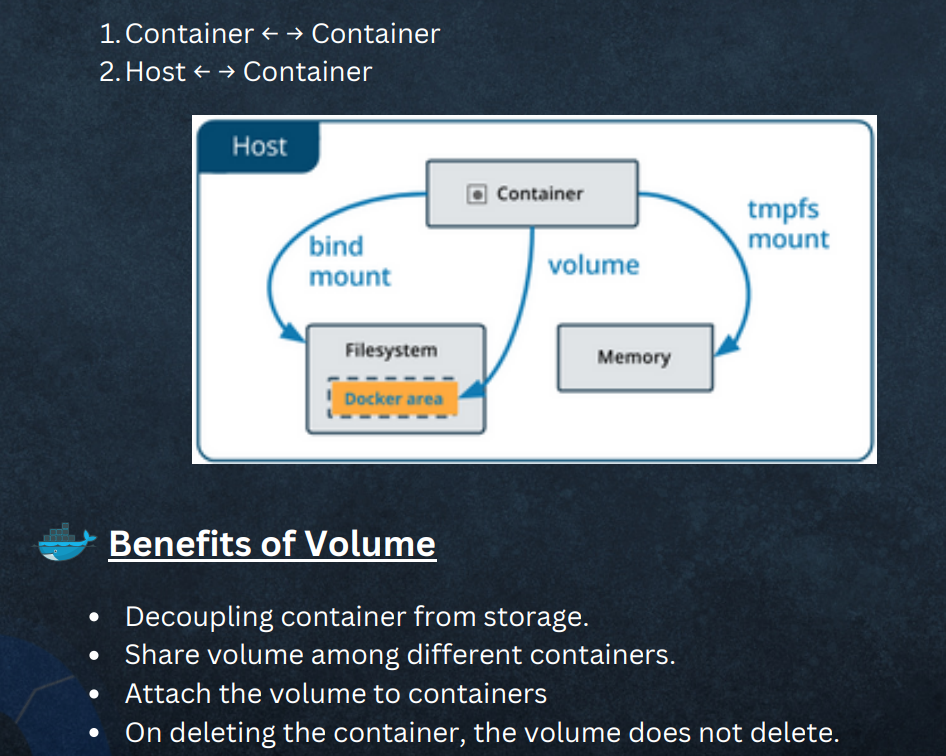
Docker Volumes are a way to store data in a container that can be shared with other containers. You can create a Docker Volume using the docker volume create command.
example:
docker volume create flaskapp
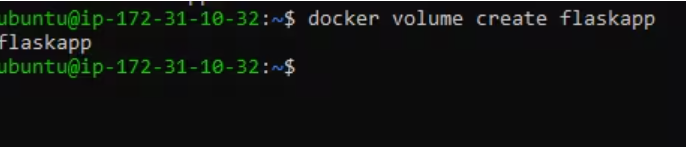
This will create a new volume that can be mounted to a container using the
--mountor-voption.Named Volumes:
Named Volumes are similar to Docker Volumes, but they have a name that can be used to reference them. You can create a Named Volume using the
docker volume createcommand with the--nameoption.Example:
docker volume create --name my_name_volume
Create two or more containers that read and write data to the same volume using the docker run --mount command.
docker run -d --name container2 --mount source=my_name_volume,target=/data alpine sleep 3600

Verify that the data is the same in all containers by using the docker exec command to run commands inside each container.
   # Write a file in container1
    docker exec container1 sh -c 'echo "Hello World" > /data/file.txt'

    # Read the file in container2
    docker exec container2 cat /data/file.txt
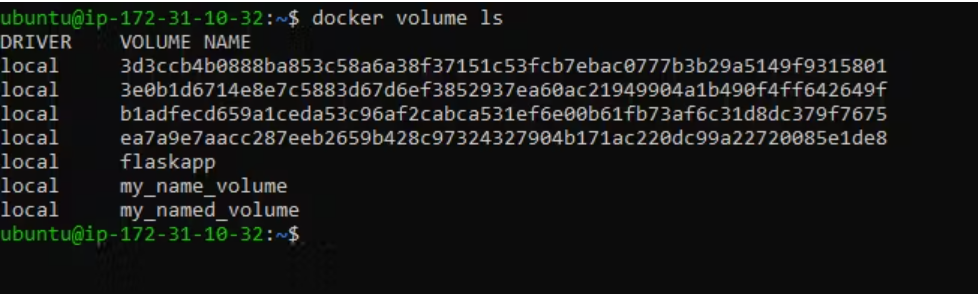
Use the docker volume ls command to list all volumes and the docker volume rm command to remove the volume when you're done.\
About the author
AWS DevOps Engineer
Comments
Join the discussionNo comments yet. Be the first to comment.


